
Introduction
You upgraded the motherboard or CPU, restarted Windows, and Activation suddenly reports that your license is not genuine—or that the product key “failed.” That reaction often feels like a broken marketplace purchase. In reality, it is usually HWID binding: Microsoft’s way of fingerprinting a PC so a digital license stays attached to a specific hardware profile.
This educational guide explains how Windows Hardware ID (HWID) works, why even a correctly purchased key can require reactivation after major hardware changes, and how to regain control without panic-buying a replacement. LicenseAudit is an independent research site; we do not sell licenses and are not affiliated with Microsoft.
Related reading on this site: OEM vs. Retail licenses, Windows & Office licensing audit, activation error database, and volume licensing compliance. For a deeper narrative on edition defaults and reclaiming control of your install, see also The Windows Licensing Trap: Why Your PC Defaults to Home and How to Regain Control on Medium.
The Root Cause: How Microsoft Fingerprints Your PC
This is not magic—it is hashing and entitlement matching. Understanding the pipeline helps you diagnose Windows activation after a motherboard upgrade correctly.
HWID (Hardware ID)
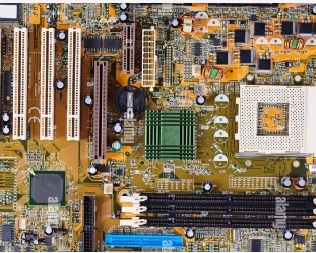
Windows builds a unique system fingerprint by combining identifiers from primary components—typically including motherboard, CPU, network adapters, and related hardware signals. That composite becomes your Hardware ID. Minor peripheral swaps usually shift the score only slightly; replacing the motherboard often rewrites the fingerprint enough for Microsoft’s servers to treat the machine as new.
Digital license vs. product key
After a successful online activation, many consumer installs rely on a digital license stored against that HWID (and, preferably, against your Microsoft account). The 25-character key may still exist in your invoice, but day-to-day activation is no longer “just type the key again.” The entitlement already lives on the old hardware hash.
The upgrade trigger
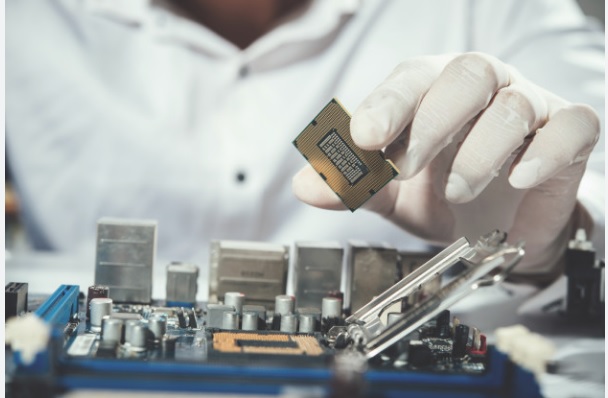
When you change a high-weight component, the HWID changes. Activation servers compare the new fingerprint with the stored digital license. If the match fails, Windows may show watermark notices, Settings activation warnings, or codes such as those catalogued in our error database (for example, hardware-ID mismatch scenarios like 0x803FA071 or post-hardware-change messages like 0x803F8001).
Audit note: A “failed” key after an upgrade is often a rebinding problem, not proof that the original purchase was invalid. Confirm license channel (Retail vs. OEM) before you spend money again.
Why This Matters for ITAM and Compliance
From an IT asset management (ITAM) and compliance perspective, HWID surprises create real operational risk:
- Downtime risk: Unexpected deactivation during business hours interrupts workflows and support SLAs.
- License mismanagement: Users often buy a second key when the correct fix is Microsoft account binding or the Activation Troubleshooter.
- Audit gaps: Fleets that track keys but not digital license + account ownership cannot predict which machines survive hardware refresh cycles. See our Microsoft license audit guide for enterprise volume scenarios (MAK/KMS), which follow different rules than consumer Retail/OEM.
Knowing your license type before you upgrade is cheaper than recovering afterward. Our OEM vs. Retail comparison explains transfer rights in plain language—OEM is generally stuck to the first motherboard; Retail is built to move within Microsoft’s activation limits.
How to Regain Control: Two Reliable Methods
If activation broke after an upgrade, do not rush to purchase another key. Try these Microsoft-supported paths first.
Method 1: Microsoft account binding (proactive)
The strongest protection is preventive. Before you replace major hardware, link the digital license to a Microsoft account (Outlook/Hotmail or work/school account where applicable):
- Open Settings → System → Activation.
- Sign in and choose Add a Microsoft account (wording may vary slightly by Windows build).
- Confirm that Activation shows the license as linked to your account.
After the upgrade, sign into the same account on the rebuilt PC so Microsoft can offer to restore the digital license to the new HWID. Pair this habit with clear documentation of whether the SKU is Retail or OEM.
Method 2: Activation Troubleshooter (reactive)
If hardware is already changed and Windows is not activated:
- Go to Settings → System → Activation.
- Run Troubleshoot.
- Select the option that you changed hardware on this device recently.
- Sign in with the Microsoft account that previously held the digital license and select the matching device from the list when prompted.
Critical distinction: A Retail license can usually follow you to new hardware via this flow. An OEM license remains bound to the original motherboard under Microsoft’s licensing terms—troubleshooting will not convert OEM into a transferable Retail entitlement. If you confirmed OEM and the board is gone, plan for a new eligible license for the new system and review edition/channel carefully using our Windows & Office hub and OEM vs. Retail guide.
If the troubleshooter fails, note the exact error code and search our Activation Error Database. Network, service, or edition-mismatch codes require different fixes than a pure HWID change. For edition confusion (Home vs. Pro defaults on OEM machines), the Medium article The Windows Licensing Trap: Why Your PC Defaults to Home and How to Regain Control walks through why factory images often land on Home and how to regain control of the licensing path.
Conclusion
Understanding HWID binding is what separates a panicked rebuy from an informed reactivation. Your key did not necessarily “break”—the hardware fingerprint changed. Bind digital licenses to a Microsoft account before major upgrades, use the Activation Troubleshooter after, and know whether you own Retail or OEM. That knowledge also connects to broader marketplace literacy: if you must replace an OEM entitlement, choose the correct license class for a new build rather than repeating the same non-transferable pattern.
Continue with: OEM vs. Retail · Error codes · Buyer safety checklist · All Knowledge Base articles.
Frequently Asked Questions
Usually no. Windows weighs components differently. A GPU change rarely exceeds the threshold that Microsoft treats as a new PC. Motherboard or major CPU replacements are the typical triggers for a digital license recheck.
Technically and contractually, OEM licenses are bound to the first motherboard they activate on. Retail licenses are the transferable consumer class. Details and buyer checklists are in our OEM vs. Retail guide.
Because the key was already used to establish a digital license on the previous HWID. Servers are matching hardware fingerprints more than “unused” product keys. Use account rebinding and the Activation Troubleshooter; if a specific code appears, look it up in the error database.
Only after you confirm the license channel and try Microsoft’s recovery tools. Retail + Microsoft account binding often restores activation. OEM after a motherboard change typically cannot move—then a new eligible license for the new hardware may be required. Prefer verifying type and edition first via Windows & Office guidance.